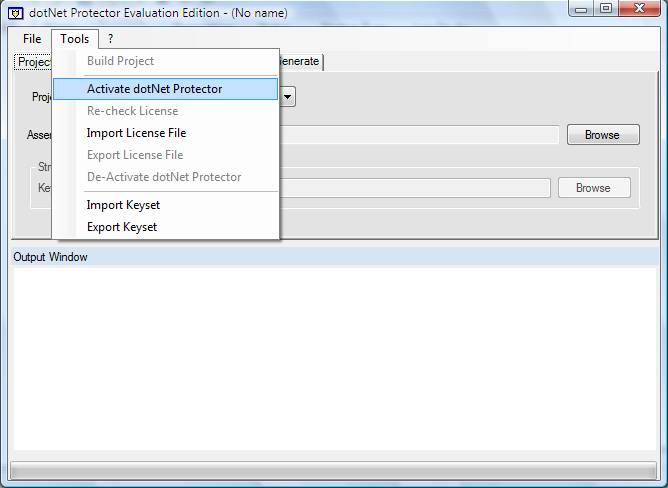
Launch activation wizard from the tools menu
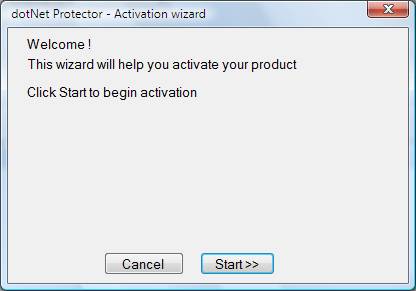
Click Start
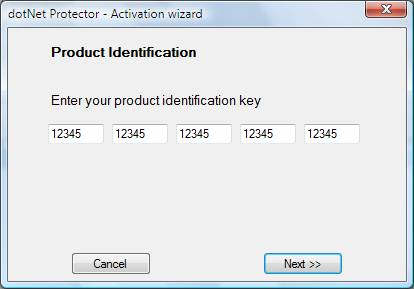
Enter your product key and click Next
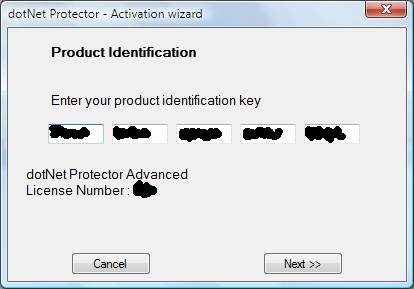
Your dotNet Protector edition and license number are displayed
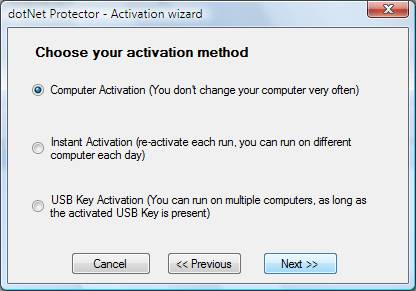
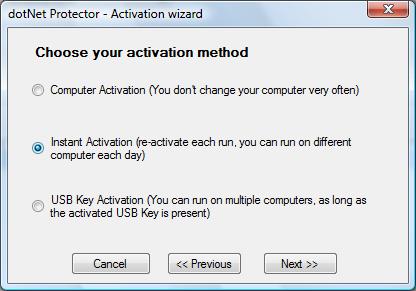
Choose your activation method
- Computer Activation : you'll be able to run dotNet Protector on this computer only.
- Instant Activation : you activate your computer for 24 h.
dotNet Protector will refresh its key each time it runs.
You can run on a different computer every day (0h00 AM GMT to 11h59 PM GMT)
- USB stick activation. You'll be able to export your license file and import it on another computer
License file is attached to your USB stick, not your computer
Usb stick must be attached to run dotNet Protector
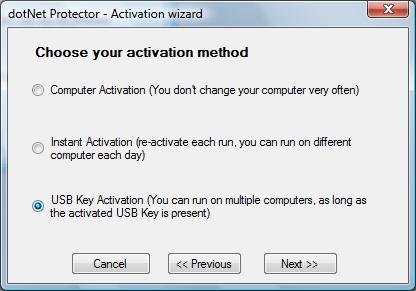
USB Activation case
USB dectector finds device by difference.
Start detection without the device; current configuration is recorded.
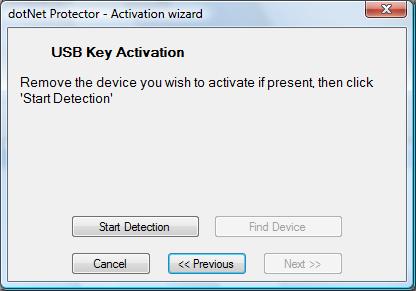
attach the device, be sure windows finished its job (looking for images, autoexec...) and click 'Find device'
Current configuration is compared with the recorded one to select to device to activate
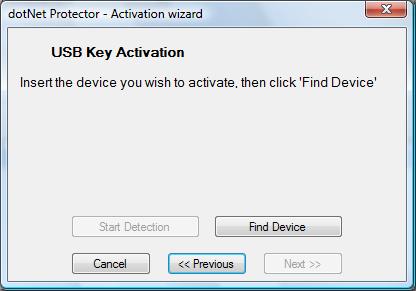
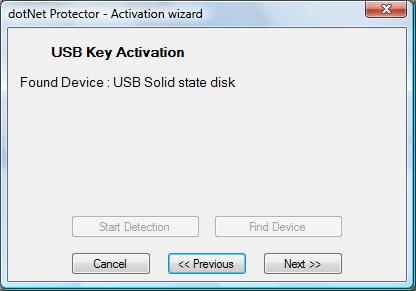
If a device is found, manufacturer and peripheral name are displayed
(names are somtimes generic ones - USB, USB Mass Storage...)
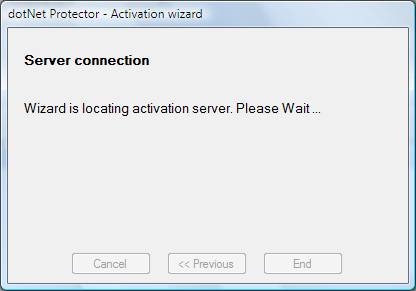
In all cases: Server connection to get a license key
Server Response
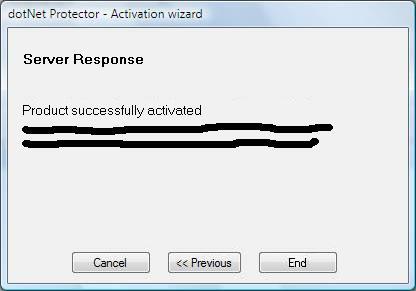
An e-mail will be sent to the mail address entered when buying dotNet Protector.
This mail contains a key needed to de-activate dotNet Protector, in case you wish to change your activation mode or your hardware.
Once de-activated, you'll have to wait 64 days before your can activate the same hardware again.
